With sales order assignment you decide which employee picks which sales orders: you drag open orders to an order picker, who from then on only sees their own orders. This lets several order pickers work side by side without two people picking up the same order.
When do you assign sales orders?
- Several order pickers – each employee only sees their own workload.
- Setting priorities – put rush orders at the top, because the sequence in the column is the sequence in which the employee sees the orders.
- Dividing the work per day – filter on delivery date and only assign the orders that need to go out today.
Enable the option
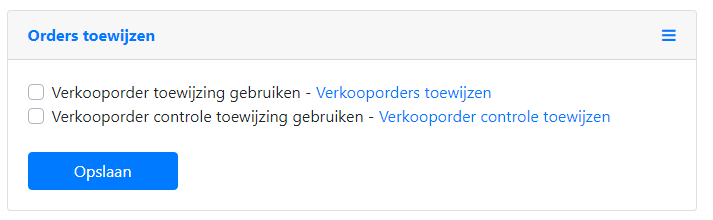
With "Use sales order assignment" you can assign sales orders to an employee. You find this option in the settings under Assign orders. Click the link behind this option to assign the orders. The employees who are assigned orders must also have this option enabled, because settings apply per user. Otherwise they will still see all orders.
Assigning orders
From the settings under Assign orders, select Assign sales orders. There you will see an overview of all open orders. By dragging an order you can assign it to a user. This user will then only see the orders assigned to them when opening the sales order overview.

This is what the assignment screen looks like:
- Open orders – the left column contains the open and partially delivered sales orders of the warehouse you are working in that have not been assigned yet, sorted by delivery date.
- One column per employee – every user with an active subscription has a column with the orders assigned to them.
- Order details – for each order you see the customer, delivery date, number of open lines, order date and, if filled in, the description, remark and your reference. Use the eye buttons to show or hide these details.
- Search – filter at the top on order number, customer or delivery date and click “Go”.
Drag an order by its header to an employee's column. The assignment is saved immediately. Drag an order back to “Open orders” to undo the assignment.
What does the order picker see?
In outgoing goods and in multiple outbound orders the order picker only sees the orders assigned to them, in the sequence of their column. Sorting by column is then disabled. If no orders are assigned, the app reports that no sales orders are assigned to you. Fully delivered orders disappear from the columns automatically.
Tips and related settings
- Invoiced orders – by default, orders that have already been invoiced are not shown. Enable “Show invoiced orders” if you want to assign those as well.
- Check assignment – with “Use sales order check assignment” you assign in the same way who checks an order.
- Quick access – enable the menu item “Sales order assignment” to open the assignment screen from the menu.
Assigning sales orders is part of the advanced subscription. See the subscriptions.
Frequently asked questions
How do I assign sales orders to an employee in Exact Online?
Enable the Use sales order assignment option and go to the Assign orders section in the settings. Choose Assign sales orders and drag an order to the desired user to assign it.
What does an employee see after orders are assigned to them?
When opening the sales order overview, the employee only sees the orders that have been assigned to them.
Why does an employee still see all orders?
Employees who are assigned orders must also have enabled the order assignment option themselves. Otherwise they will still see all orders.
Can I decide in which order an employee sees their orders?
Yes. The sequence of the orders in an employee's column is the sequence in which they see them in their sales order overview. Drag an order up or down to change the sequence.
How do I undo an assignment?
Drag the order back to the Open orders column. The order is then no longer assigned to an employee.
Which subscription do I need to assign sales orders?
Assigning sales orders is part of the advanced subscription. With a basic subscription the option is not available in the settings.