The Barcode Scan App for Exact Online can be used to register batch and serial numbers. This enables fully comprehensive tracking and tracing in Exact Online.
Exact Online
In Exact Online, you specify per item whether it is a batch or serial number item. This can be done from the master data; select the item and click edit:

Indicate whether the item uses batch or serial numbers.
Incoming goods
When receiving purchase orders, it is mandatory to register the batch or serial number for batch and serial number items.
Registering batch numbers
When a batch item is received, a Batch No. button appears.

When you press that button, you can register the batch number.

The batch number can be registered by barcode scanning or manual entry.
Batch number generation
Does an item not have a batch number but you still want to track and trace it? Quickly create a unique batch number from the app. Press the green button next to the batch number:

The Barcode Scan App will then automatically generate a unique batch number for that item. The batch number in combination with the item code is unique.
Registering serial numbers
Serial numbers can also be registered extremely quickly in the Barcode Scan App. Press the Serial Number button to do so:

Depending on the selected quantity of items, multiple input fields will be available to register all items.

Are you using a barcode scanner to scan the serial number? Make sure it sends an enter key after scanning the barcode. The serial number is then immediately recognised by the app, which automatically jumps to the next serial number field so you can scan all serial numbers consecutively.
Does an item not have a serial number but you still want to trace it uniquely? Press the green button next to the serial number field to generate a unique serial number:

The serial number is unique as a combination of the item code and the serial number.
Outgoing goods
Serial and batch numbers can also be registered in the outgoing goods flow, ensuring a comprehensive tracking and tracing registration.
GS1 barcodes
With a GS1 barcode, you only need to scan one barcode and the item is immediately recognised along with the batch number or serial number. An expiry date can also be encoded in this barcode. More information about the GS1 barcode can be found here.
Entering multiple serial numbers
To properly meet tracking and tracing requirements, it is important to register serial numbers comprehensively. The Barcode Scan App now offers the option to quickly register multiple serial numbers simultaneously. To activate this feature, uncheck the option “Hide multiple serial number entry” in the settings under the “Serial number items” tab:
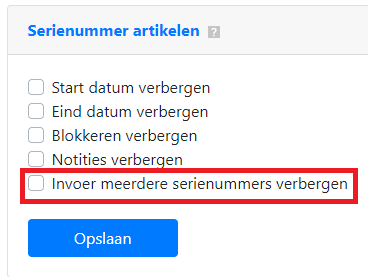
Then press save. The Serial Numbers button will then appear in multiple locations in the app:

For example, with incoming goods. When you press this button, a pop-up appears where you can enter the serial numbers:

You can enter a serial number on each line (for example by copying and pasting from Excel). You can also scan a QR code containing the different barcodes. The serial numbers are then linked to the order line. The quantity is also increased by the number of serial numbers scanned.
There are many different ways to store serial numbers in a barcode. If the above feature does not recognise the serial numbers in your situation, please contact us. The barcode encoding is likely different from what has been developed so far. We may be able to add your encoding. Please include a photo of the barcode.