Settings
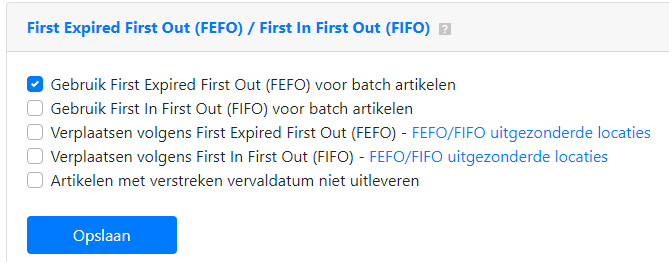
To use FIFO (First In First Out) or FEFO (First Expired First Out) you need an advanced subscription. To use FIFO or FEFO you must first activate this functionality in the settings:
Fulfilling sales orders based on FIFO or FEFO
Once you have activated the FEFO settings, the sales order lines from Exact Online are split across the available batch numbers. With FEFO, the batch numbers that expire first are recommended to be issued first:

By fulfilling sales orders in this way, you rotate your inventory so that products with the oldest expiry date are always issued first.
If you have chosen the FIFO option, the batch numbers with the oldest expiry date are not issued but rather the batch numbers that were created first in Exact Online. For FIFO-based issuance, the creation date of the batch number is used.
Do not issue expired products
With the setting “Do not deliver items with an expired expiry date” you prevent items that no longer meet the shelf life requirements from being issued:
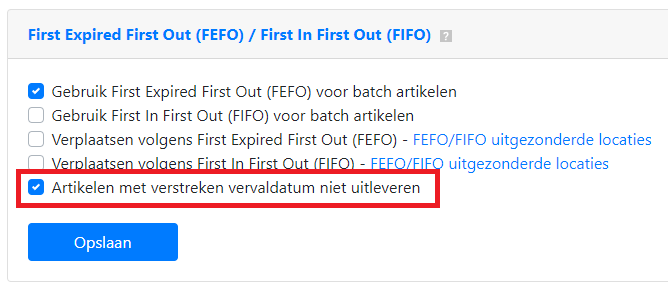
When this option is selected, items with an expired best before date are not recommended for delivery.
Select a batch number yourself
If you want to select a batch number yourself, you have the option to view which batch numbers should be issued first based on FEFO or FIFO. To do so, press the batch number button in the order line. A button then appears to select the batch number based on FEFO or FIFO:


Move items based on FEFO or FIFO
In the settings you have the option to activate transfers based on FIFO or FEFO:
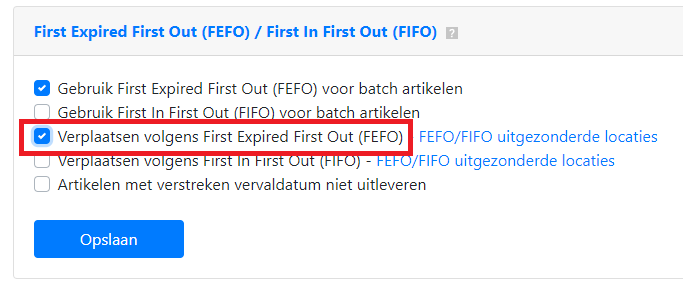
When you want to move a batch item, you can choose to select a batch number based on FEFO or FIFO. You can also specify excluded locations. Batch items stored at excluded locations are not included in the selection. This allows you to filter certain storage locations such as a van or a finished goods location from the results.
