The Barcode Scan App for Exact Online allows you to print labels. There are different types of labels. This page displays the various label types. Label printing is available from the advanced subscription plan onwards.
Item labels
Item labels are used on regular items and include a barcode to quickly identify the item.
Item Code 128 (Dymo – 92912 – 25x25mm)

Item Code 128 (Dymo – S0722530 – 13x25mm)

Item Code 128 (Zebra – Z-Perform 1000T 880003-025D 38x25mm)

Item Code 128 (Zebra – 35x45mm)

Item Code 128 (Dymo – Durable – 1976411 – 25x54mm)

Item Code 128 (Dymo – Multipurpose – 11354/S0722540 – 32x57mm)

Item Code 128 (Zebra – 25x60mm)

Item Code 128 (Zebra – 30x60mm)

Item Code 128 (Dymo – Large Address – 30321/99012 – 36x89mm)

Item Code 128 (Dymo – Warehouse label – 1933081 – 25x89mm)

Item Code 128 (Brother – DK-11240 – 102x51mm)

Item Code 128 (A7 – Landscape)

Item Code 128 (A6 – Landscape)

Item Code 128 (A5 – Landscape)

Item Code 128 (A4 – Landscape)

Item QR (Dymo – 92912 – 25x25mm)
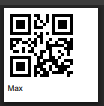
Item QR (Dymo – S0722530 – 13x25mm)

Item QR (Zebra – Z-Perform 1000T 880003-025D 38x25mm)

Item QR (Zebra – 35x45mm)

Item QR (Dymo – Durable – 1976411 – 25x54mm)

Item QR (Dymo – Multipurpose – 11354/S0722540 – 32x57mm)

Item QR (Zebra – 25x60mm)

Item QR (Zebra – 30x60mm)

Item QR (75x75mm)

Item QR (Dymo – Large Address – 30321/99012 – 36x89mm)

Item QR (Euronorm – 100x30mm)

Item QR (Zebra Z-Perform 1000T 3004645 – 100x100mm)

Item QR (Brother – DK-11240 – 102x51mm)

Item QR (Brother – DK22246 – 103mm)

Item QR (A7 – Landscape)

Item QR (A6 – Landscape)

Item QR (Shipping label – 100x150mm)

Item QR (A5 – Landscape)

Item QR (A4 – Landscape)

Item QR (item code) (Dymo – Multipurpose – 11354/S0722540 – 32x57mm)

Item QR small barcode (Zebra – Z-Perform 1000T 880003-025D 38x25mm)

Item QR with description (Zebra – Z-Perform 1000T 880003-025D 38x25mm)

Serial number labels
Serial number labels are specifically designed for serial number items.
Serial (Dymo – Large Address – 30321/99012 – 36x89mm)

Serial QR errorlevel 3 (75x75mm)

Serial QR errorlevel 3 (Dymo – Large Address – 30321/99012 – 36x89mm)

Serial QR errorlevel 3 (Zebra Z-Perform 1000T 3004645 – 100x100mm)

Serial QR errorlevel 3 (Shipping label – 100x150mm)

Serial QR errorlevel 3 (A5 – Landscape)

Batch number labels
Batch items can be provided with a batch number label for quick identification. By applying a batch number label to incoming goods, the QR code can be used to identify the item throughout the further process (transfers, issue to production, stock counts and shipments). The item can then be identified with a single scan. There is no need to manually enter the batch number or manually split order lines. Using batch labels reduces the chance of errors.
Batch (Dymo – Large Address – 30321/99012 – 36x89mm)

Batch QR errorlevel 0 (Dymo – S0722530 – 13x25mm)

Batch QR errorlevel 0 (Euronorm – 100x30mm)

Batch QR errorlevel 3 (75x75mm)

Batch QR errorlevel 3 (Dymo – Large Address – 30321/99012 – 36x89mm)

Batch QR errorlevel 3 (Zebra Z-Perform 1000T 3004645 – 100x100mm)

Batch QR errorlevel 3 (SATO – 100x100mm)

Batch QR errorlevel 3 (Shipping label – 100x150mm)

Batch QR errorlevel 3 (A5 – Landscape)

Customer label
Need to quickly assign a group of items to a customer? Use a customer label:

Packing slip
The Barcode Scan App can generate a packing slip:

Storage location label
When you equip storage locations with a location label containing a barcode, the storage location can be scanned with a barcode scanner when an item is picked or placed. This reduces the chance of errors and speeds up the workflow.

Creating your own batch or serial number labels
The Barcode Scan App can generate batch and serial number labels. However, sometimes labels for your products are created from a separate system. When the barcodes meet the properties described below, the labels will be recognised by the app as serial or batch labels.
Batch label structure
The barcode on a batch label must have the following structure:
B_Rozijnen – Thompson_106510561
The B_ indicates that it is a batch label. This is followed by the item code from Exact Online, ending with an underscore (_). The batch number follows after that. When a barcode with this structure is scanned in the app, it is recognised as a batch item. The item is identified and the batch number is automatically filled in.
Serial number label structure
The barcode on a serial number label must have the following structure:
S_Raceauto_123456
The S_ indicates that it is a serial number label. This is followed by the item code from Exact Online, ending with an underscore (_). The serial number follows after that. When a barcode with this structure is scanned in the app, it is recognised as a serial number item. The item is identified and the serial number is automatically filled in.
Automatic printing
When you print frequently, it is useful to automate this process as much as possible to minimise time spent. The Barcode Scan App offers the ability to reduce the number of printing steps on a PC.
To do this, go to the app settings and select “Print label directly” under the printing tab:

Go to the settings in the Chrome browser:

Select the Privacy and security option:

Open the site settings:

Click on additional content settings and then on PDF documents:

Download the PDF files:

Then print a label and tick “Always open in Adobe Reader”:

After this, the PDF will be automatically saved and opened directly in Adobe Reader. It will then immediately open the window to print the label. Now you only need to press print to print the label.
Printing from Android
The Barcode Scan App is widely used on Android barcode scanners. When you want to directly control a printer from your Android device to print labels, this is not always straightforward. Before purchasing a printer, check carefully whether a driver is available for it in the Play Store.
Controlling a printer from an Android device is not supported by all printers. Printers that are supported comply with the Mopria standard.
Do you have a printer that cannot be controlled directly from the Android device? Then take a look at the NiceLabel integration. This allows you to send a print trigger directly from the Barcode Scan App to the NiceLabel cloud. NiceLabel then ensures that the printer is properly controlled.