To ensure the barcode scan app functions optimally, it is important to follow the steps below carefully:
- Link barcodes to your products
- Check for duplicate barcodes
- Configure your barcode scanner
- Label your stock locations with a barcode
- Get started with barcode scanning
Link barcodes
For each item you are going to scan, fill in the barcode field in Exact Online. This can be done from the app but also from Exact Online via: Master data

Then go to Items:

Select the item, edit it and fill in the barcode field:

Press save. Once you have added a barcode to all items, it is important to fully refresh the cache of the Barcode Scan App.
Enter barcodes from the app
It is also possible to fill in the barcodes from the app. You can then use your barcode scanner directly to fill in the barcodes. This reduces the chance of errors compared to manual entry.
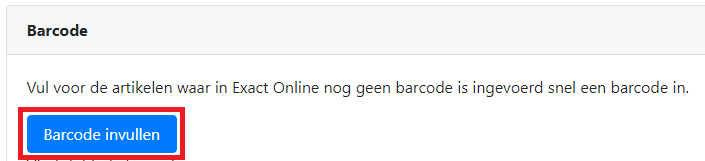
To fill in the barcodes from the app, go to the settings page and press the button below:
Select the item and fill in the barcode:

Press save and the barcode has been added to the item.
When there are no more items in the list, all your items have a barcode.
Check for duplicate barcodes
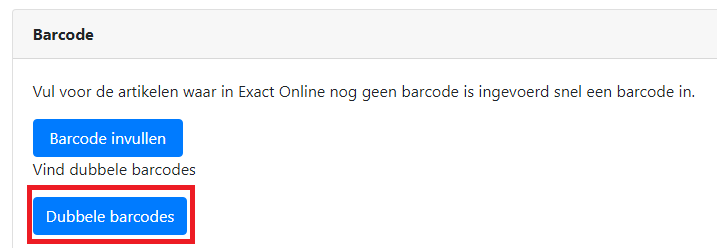
When 2 items have the same barcode number, the app cannot distinguish between them. It is therefore important that each item has a unique barcode. Go to the settings page and press the button below to check whether duplicate barcodes have been entered:
If duplicate barcodes have been found, they are displayed in a list:

Look up these items in Exact Online and change the barcode for one of these items.
Configure your barcode scanner properly
When you use an external (bluetooth) or industrial barcode scanner, it is important that it is configured correctly. Make sure that after scanning a barcode, the scanner appends an enter. The app will then immediately recognise the scanned barcode and use it in the app.
Consult the manual of your scanner on how to configure it so that it ends with an enter. With some scanners this is called suffix or an end character must be entered. If a code is requested, this is often the number 13.
Label your stock locations
Do you use stock locations in Exact Online? Then label your locations with a barcode so they can be scanned. This reduces the chance of errors.
The label must have a barcode containing the location code. With the advanced subscription you can also print labels for your storage locations. To do this, go to the settings page and look under printing for the storage location label:

Print the location labels and stick them on the locations:

Get started with barcode scanning
Have you completed the steps above? Then it is time to take the first steps with barcode scanning. Log in to Barcodescan.nl and book your first purchase or sales order using barcode scanning.