On the settings page you can configure the Barcode Scan App for Exact Online so that the app functions optimally for your situation.
To go to the settings, click the Settings button in the menu:

Company
Under Company you can find the general information of your administration. There is also a link to the terms of use.

Cache
To ensure the app runs quickly, a copy is made of the required data from Exact Online. However, it may happen that the data in our database is not synchronized with the data in Exact Online. In that case, it is necessary to refresh the cache. By pressing the “Load all” button, all required data is downloaded from Exact Online. By pressing the “Load changes” button, only the changes are loaded.

Loading the cache may take some time depending on the size of your Exact Online administration.
The cache database is shared across all devices. So if you have multiple devices, there is no need to load the cache separately for each device. Loading on one device is sufficient to update all data.
General
In this section you can modify the general settings:

Menu
Here you can select the buttons that should be displayed in the menu and on the main page. This allows you to configure which functionalities are directly available.
Swipe
When picking items, for example, it is possible to swipe order lines to immediately fully deliver them or report shortages. If you only use barcode scanning, this option may be perceived as inconvenient. With this setting, you can disable swiping.
Out

Sales orders
Hiding partially delivered orders ensures that only orders that still need to be fully delivered are displayed in the sales order overview.
By selecting “Only show orders with a delivery date of today or earlier”, only the orders that need to be delivered today or earlier are displayed. This way you only see the orders that need to be shipped.
Sales order lines
There are several options for displaying sales order lines. By default, all sales order lines are displayed. When you choose “Hide completed order lines”, an order line becomes hidden after it has been fully processed. This helps you keep track of which lines still need to be handled.
With the option “Display one sales order line at a time”, only one line is displayed at a time. When this line has been processed, it disappears and the next sales order line is displayed.
Set order sequence
By default, sales order lines are displayed in the same order as they were entered in Exact Online. This order can be changed.
For example, sales order lines can be displayed in order of Item. This allows you to configure that all heavy products are picked first, followed by the lighter products on top.
Or you can set the order so that the optimal walking route through the warehouse is chosen. Select Storage location in the drop-down and click save. Then click “Storage location” to enter the optimal walking route.
Returns
For returns, you can specify how they should be processed by default.

Move
In these settings you can modify how the transfer of items works:

By default, the source and destination storage locations are pre-filled when transferring an item. When using a barcode scanner, this option is not practical. With these options you can block the pre-filling of storage locations. This allows you to quickly scan a location barcode. This prevents errors and saves the extra steps of removing the pre-filled location.
Stock counts
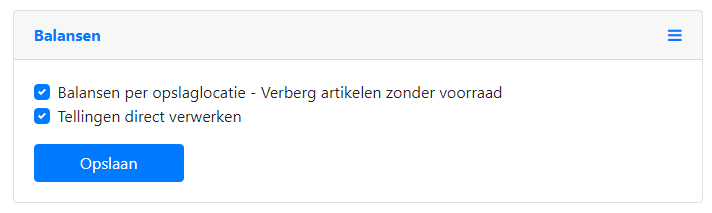
For stock counts, you can set whether you want to display items that currently have no stock.
When performing stock counts, you can enter a stock count as a draft in Exact Online. If you want to process the counts immediately, you can enable this as the default option. This eliminates the need to manually set this during the stock count.
In without purchase order
With “In without purchase order”, new items are processed as a stock count. This can be saved as a draft in Exact Online. If you want to process this stock count immediately, you can specify that here. The counts will then not be saved as a draft but the stock will be adjusted immediately.

Out without sales order
With “Out without sales order”, the booked-out items are processed as a stock count. This can be saved as a draft in Exact Online. If you want to process this stock count immediately, you can specify that here. The counts will then not be saved as a draft but the stock will be adjusted immediately.

Barcode
To quickly get started with the Barcode Scan App for Exact Online, it is necessary to enter the barcodes of the various items in Exact Online. To do this quickly, press the “Fill in barcode” button. A list of items that do not yet have a barcode linked will then appear.
When multiple items have the same barcode, unexpected situations will naturally arise. To prevent this, press the “Duplicate barcodes” button. A list of all items that share the same barcode will then appear.

Hide webcam barcode scanner
In various places it is possible to scan barcodes using your webcam. However, when using a dedicated barcode scanner, these buttons may cause confusion. By enabling this option, these buttons will not be displayed:

Use alternative webcam barcode scanner
When using the webcam as a barcode scanner, there is a chance it may not work on every device. You can then try whether the alternative barcode scanner works.
Block item auto-complete

When you want to select an item, you can start typing in the barcode field. After entering 2 characters, items matching your search query are displayed. If you prefer not to use this feature because you only want to scan barcodes, you can disable it with this function.
Block storage location auto-complete

When you want to select a location, you can start typing in the storage location field. After entering 2 characters, storage locations matching your search query are displayed. If you prefer not to use this feature because you only want to scan a location barcode, you can disable it with this function.
Storage location
In various places in the app you can choose a location. When this selection is displayed, you can use the option “Hide storage locations without stock” to hide empty locations.
When a storage location is selected, you can use “Select preferred storage location based on:” to specify which location should be pre-filled by the app.
For the selection of a storage location, you can use “Sort storage locations by:” to specify which location should appear at the top of the list.

Printing
The Barcode Scan App can generate various labels to help you optimize your logistics process.
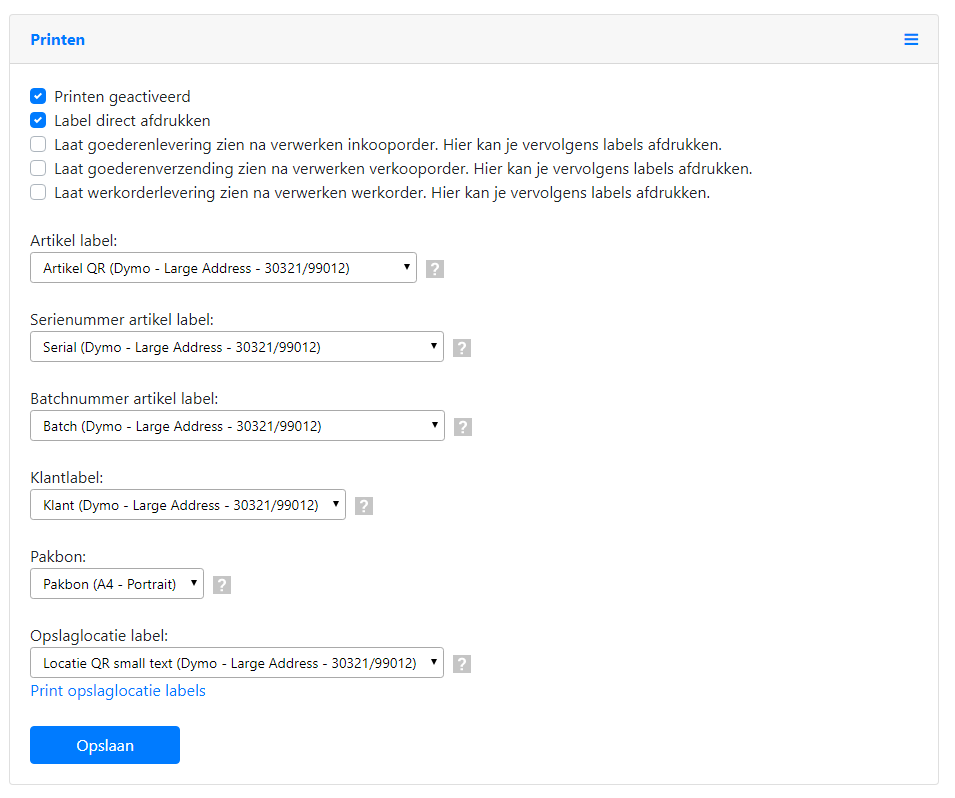
“Printing enabled” makes print buttons visible in various places in the app.
“Print labels immediately” ensures that as soon as a PDF of a label is displayed, the print dialog appears to print the label.
“Show goods receipt after processing purchase order. Here you can then print labels.” shows all goods receipts for the purchase order. On this screen you have the option to print item labels.
“Show goods shipment after processing sales order. Here you can then print labels.” shows all goods shipments after delivering an order. From this screen the packing slip can be printed.
“Show work order receipt after processing work order. Here you can then print labels.” provides the option to add item labels to the produced items.
There are various templates for printing labels. You can select the desired label that best suits your situation. If no suitable template is available, a custom one can be created. Please contact us for this.
First Expired First Out
With FEFO, the oldest items are delivered first. This ensures that for perishable batch items, the items with the shortest shelf life are processed first. The expiry date in Exact Online is used as the shelf life date. Make sure this is filled in for the batch numbers.
“Use First Expired First Out (FEFO) for batch items” ensures that the oldest batch items are selected first for sales orders and for supplying raw materials to production. It is important that you have filled in the expiry date for the batches in Exact Online.
“Move according to FEFO” ensures that the item with the shortest shelf life is selected first when transferring. By specifying “FEFO excluded locations” you can indicate which locations should not be included. For example, you can exclude items in a delivery vehicle so they are not selected during FEFO processing.
“Do not deliver items with expired expiry date” ensures that expired items are not delivered.

Assign orders
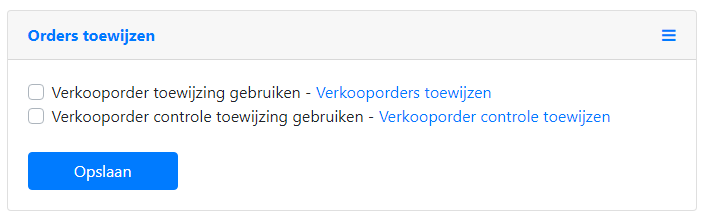
With “Use sales order assignment” you can assign sales orders to an employee. Click the link behind this option to assign the orders. The employees who receive assigned orders must also have this option enabled. Otherwise, they will still see all orders.
With “Use sales order verification assignment” you can assign the verification of sales orders to an employee. Click the link behind this option to assign the verification. The employees who receive assigned verifications must also have this option enabled. Otherwise, they will still see all orders.