Always keep your inventory accurate with the Barcode Scan App for Exact Online. Count your inventory regularly to keep the stock in Exact Online up to date. By counting regularly you prevent the annual stock count.
Log in and click the “Stock Counts” button:

A list of all items with a current stock greater than 0 will then appear:

This list can be sorted by clicking on the column headers.
Or select items directly by using the barcode field:
- Search by item name or item description (after 2 characters the available products will appear)
- Use the barcode scanner to scan a product barcode (barcode button or barcode scanner)
Do you also want to see items where the stock is greater than 0? Then enable the following checkbox:

Select all items to count from the list by clicking on them and press submit to continue.
The following input screen will then appear:

All selected items can be found here.
There are several different ways to change the quantity of products:
Scan barcode
Scan the barcode of the product to add 1.
Plus or minus button
Use the plus and minus button to change the quantity of products:

Or enter the quantity directly by clicking on the number.
Double click
Double-click on the product to copy the full quantity of products. When you double-click on the product, the current number of products in stock is copied. When the counted quantity and the current number of items in stock are equal, the product turns green.

When all items have been counted, you can add a comment. Also choose here whether you want to process the count directly in Exact Online or whether you want to process it later from Exact Online and save the count as a draft for now:

Then press submit:

After pressing the button (when the process immediately checkbox is checked), the inventory is adjusted directly via the Exact Online API. The number of items in stock is now the number of counted products.

After seeing the following message, the product count has been processed in Exact Online.
Stock counts with storage locations
When your current warehouse uses storage locations, you will see the following message:
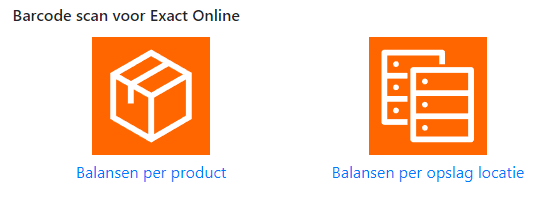
The “count per product” is the same as described above. The “Count per storage location” works differently. After pressing the “Count per storage location” button, a list of all storage locations will appear. Select the storage location to count:

A list of all items that should be at this storage location will then appear:

Count these items as described above.